How To View and Clip Playback Footage in Smart PSS
This guide will walk you through the step-by-step process of how to view and clip playback footage using Smart PSS. Whether you need to review past events or export a video clip for records, these instructions will help you navigate the software easily and efficiently.
817-632-4246Step-by-Step Process of How To View and Clip Playback Footage Using Smart PSS
Step 1
Open the Smart PSS app on your desktop

Step 2
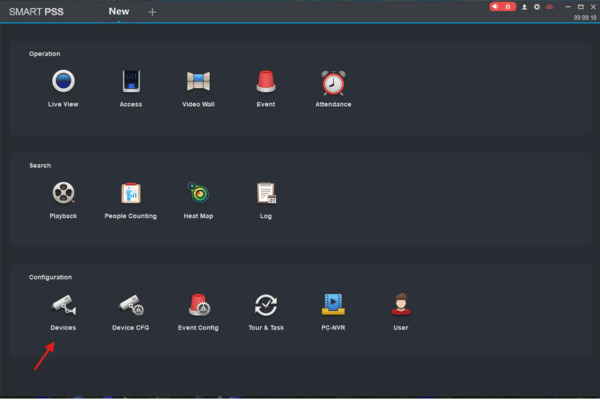
Click on Devices
Step 3
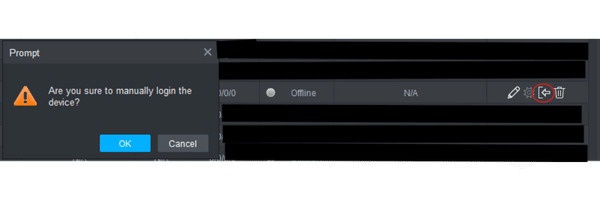
Manually login to the NVR and bring it online
You will use the camera information that you receive/request from Sentry to login to the system. Reach out to our office if you do not have this information and we can provide it to you.
Step 4
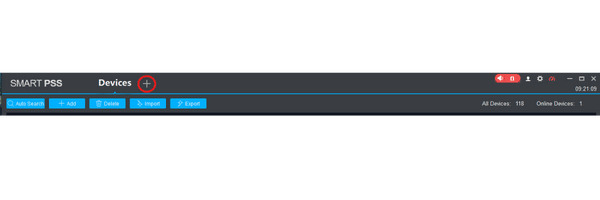
Click on the + to add a new page that will take you back to the dashboard
You will use the camera information that you receive/request from Sentry to login to the system. Reach out to our office if you do not have this information and we can provide it to you.
Step 5
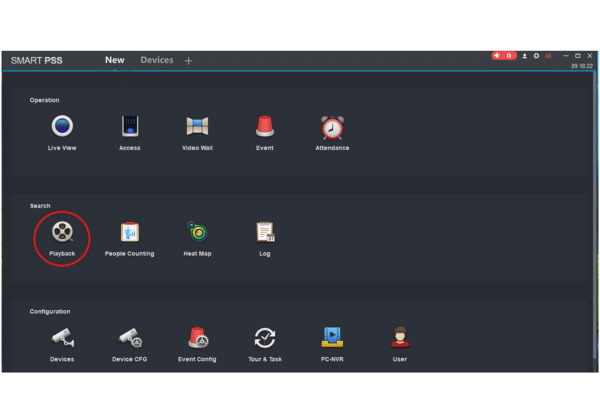
Click on playback
You will use the camera information that you receive/request from Sentry to login to the system. Reach out to our office if you do not have this information and we can provide it to you.
Step 6
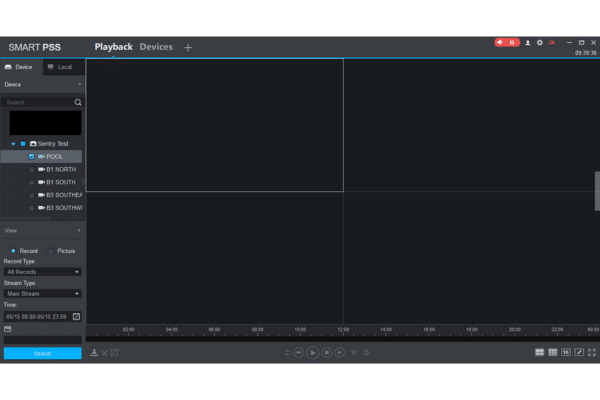
Check the box of the camera that you are wanting to view playback for
Step 7
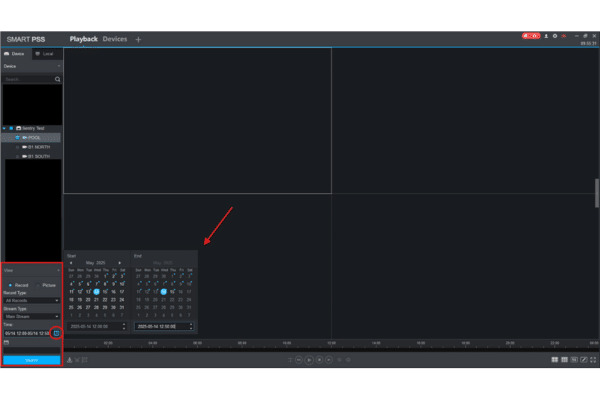
Click on the calendar icon that is circled and pick the date of the footage you are trying to pull
If it has a blue dot, there is footage from that day.
Step 8
You will need to input the timeframe of the footage you want to view. On the left will be the start time and, on the right, will be the end time.
It is 24-hour time so you will need to do those calculations to ensure it is the correct time you are looking for
Make sure to hover your mouse over the highlighted area while entering the time, it will not work if your cursor is not in the box when inputting the numbers.
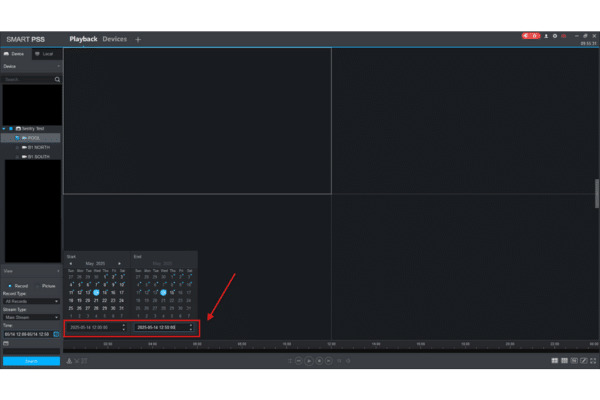
Step 9
You will then click the search button that is highlighted. You will see a green line or a green/yellow line at the bottom of the screen. This indicates that you are ready to view the footage. You will then click the play button that is circled to start the playback.
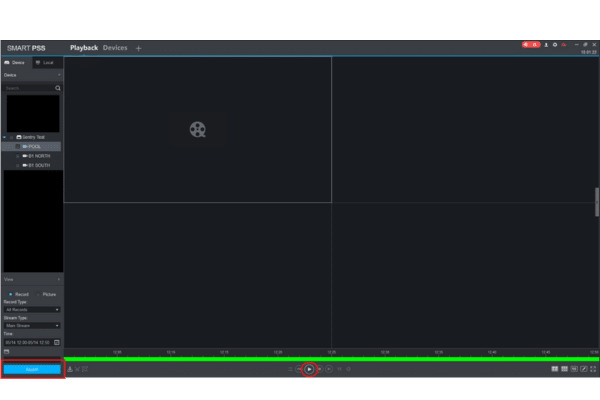
Step 10
You will need to then click on the scissor icon that is circled in red and adjust the time to clip the incident you are trying to save. There is a slider on the left and right that you will need to move to your desired times.
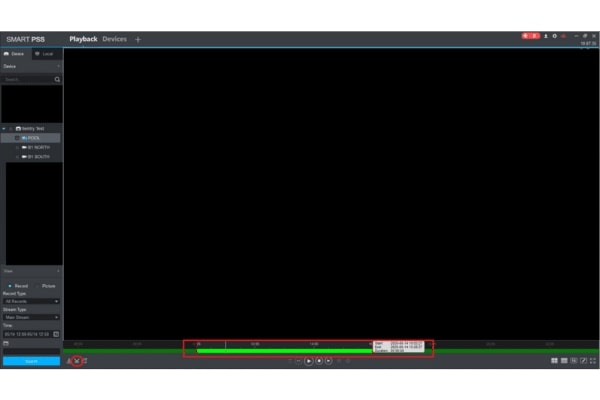
Step 11
You will need to click on the scissor icon one more time to clip the footage. Then this box will pop up. You will need to decide where you want your footage to save to in your computer.
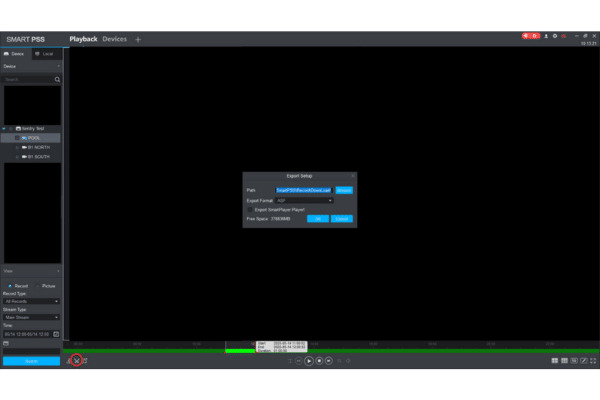
Step 12
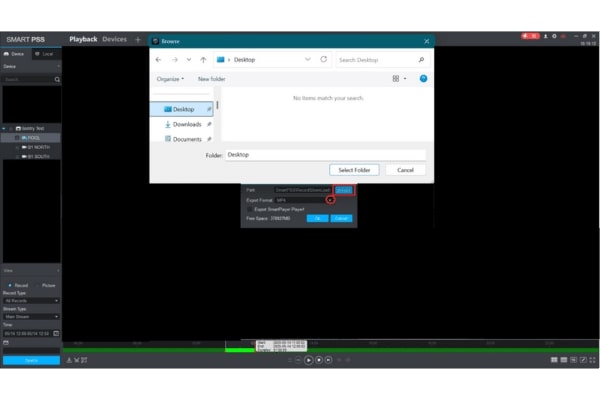
You will need click the drop down arrow and select MP4 and then click browse to determine which folder you want to save your footage to.
Step 13
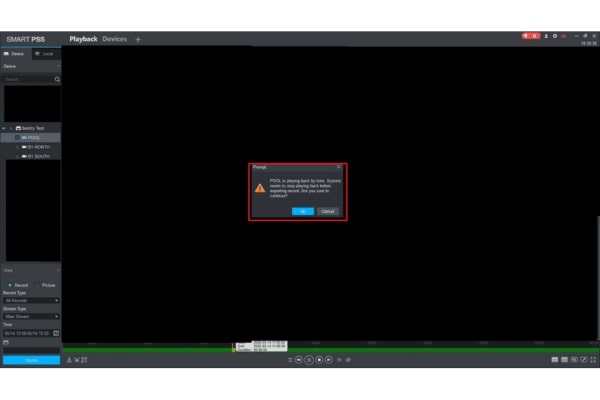
You will get a pop up that states the message below. You can just press ok.
Step 14
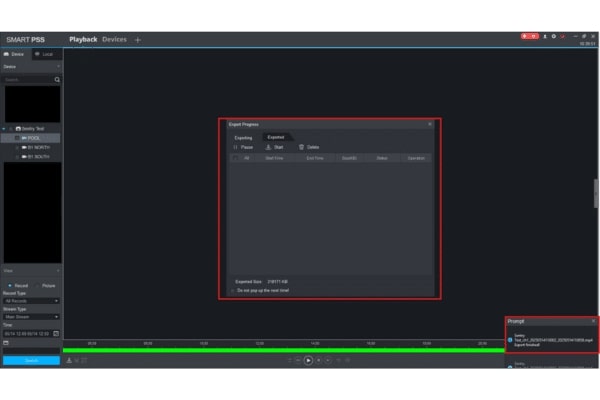
You will see that it is exporting and will receive the message that is highlighted in the bottom right corner to confirm that it is finished exporting.
Step 15
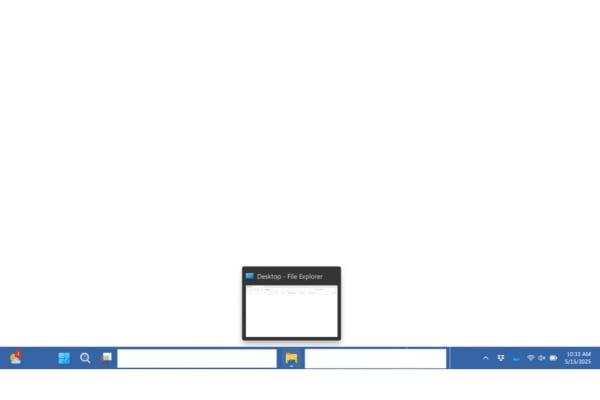
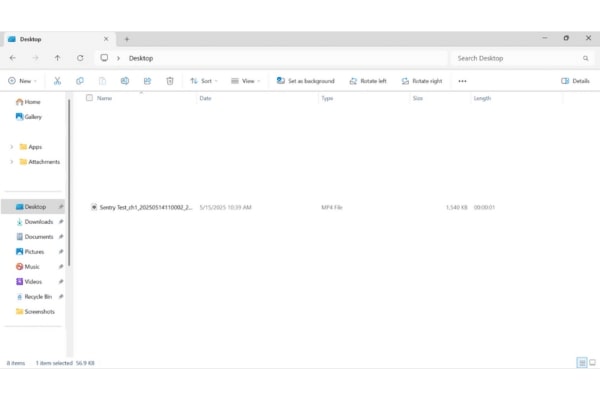
Go back to your desktop and click on the files. You will then navigate to the files application to find the location of your saved footage.
Step 16
You will see it in the folder where you saved the footage.
A Few Tips:

Looking for Assistance?
Have questions or want a free security assessment? Our team is ready to help.
New Security Systems
Schedule a consultation or system design
Existing Systems
Service, maintenance, and upgrades