How to Download the DMSS App
Keeping an eye on your property has never been easier. The DMSS app lets you view your security cameras anytime, anywhere, right from your smartphone or tablet. Whether you’re setting it up for the first time or reconnecting after an upgrade, this guide will walk you through how to download the app, add your cameras, and start watching live video in just minutes.
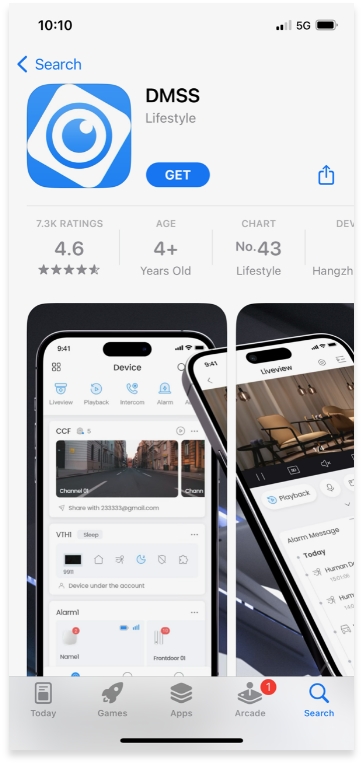
Step 1: Navigate to the App Store (iPhone) or Play Store (Android) to download the DMSS app. The DMSS app will look like this
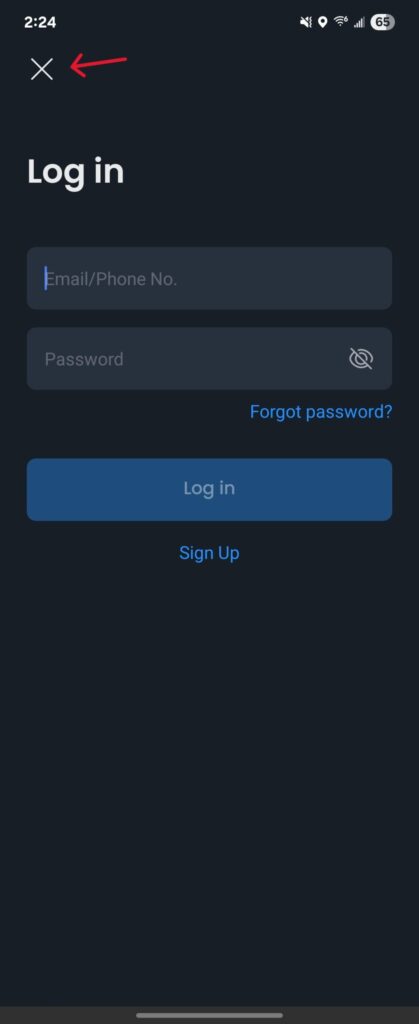
Step 2: The app will prompt you to login, you don’t need to create a login to utilize this software. Just click the X to bypass this.
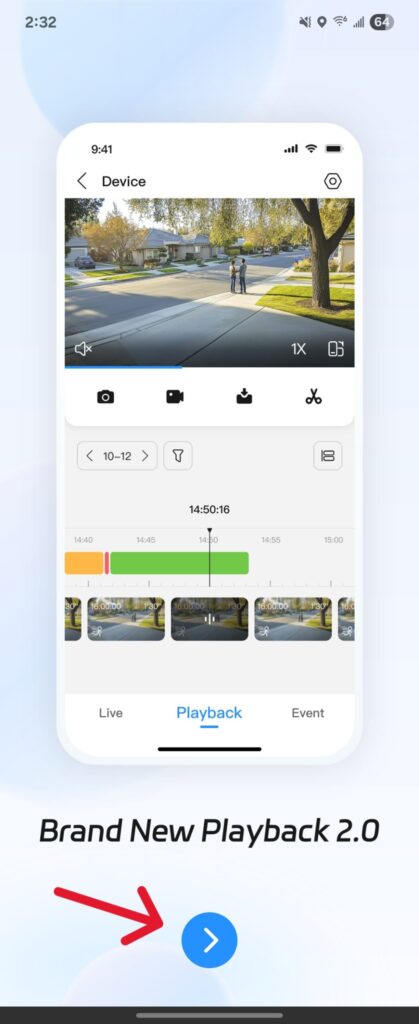
Step 3: This screen may pop up, just scroll through the pages and click the arrow once you get to the end. You will then select the United States as your region.
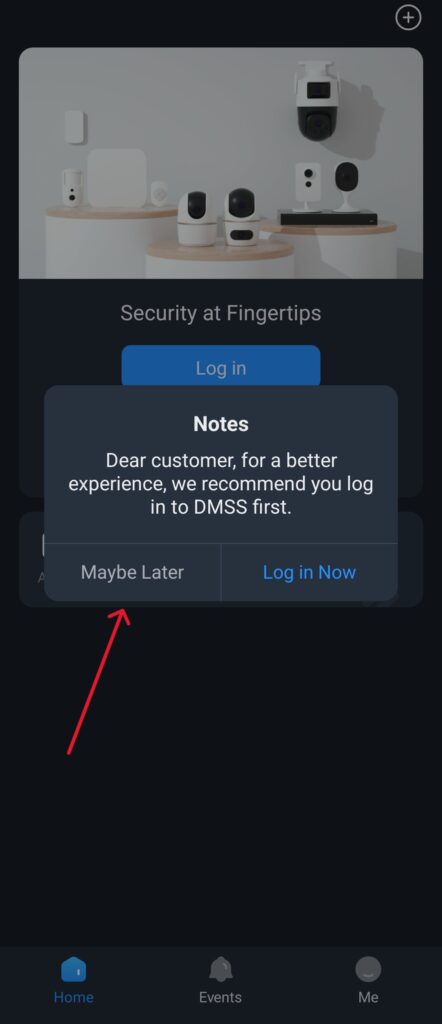
Step 4: This note may appear stating that logging in may improve your experience, just click maybe later.
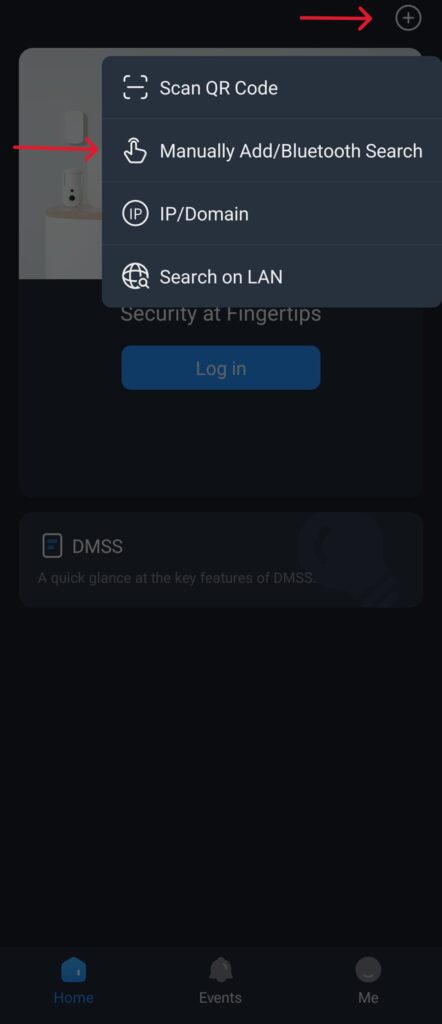
Step 5: You will then be directed to the dashboard of the
application. Once here, click on the + at the top right of the
screen to add your camera system.
A menu to select which method to add your system will pop up, please
select ‘manually add/Bluetooth search’.
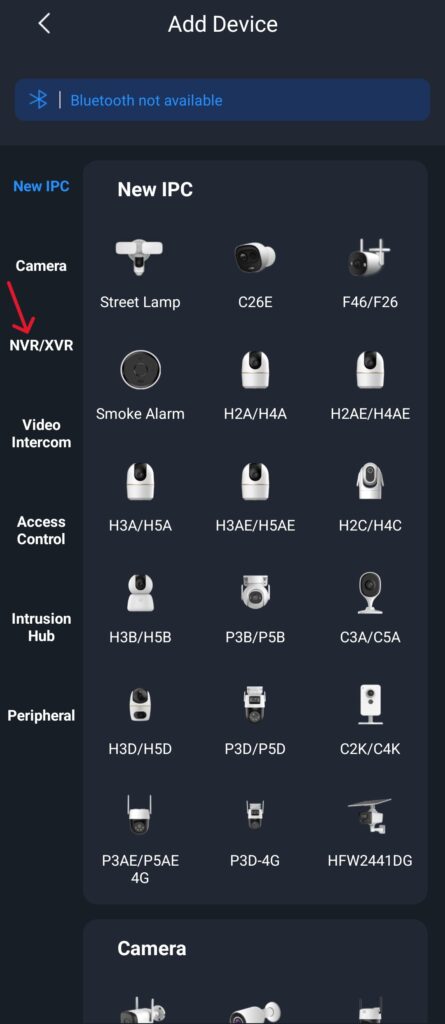
Step 6: After pressing this method, you will then be directed to a page with many camera devices. You will need to click on the NVR/XVR option on the left side of the screen.
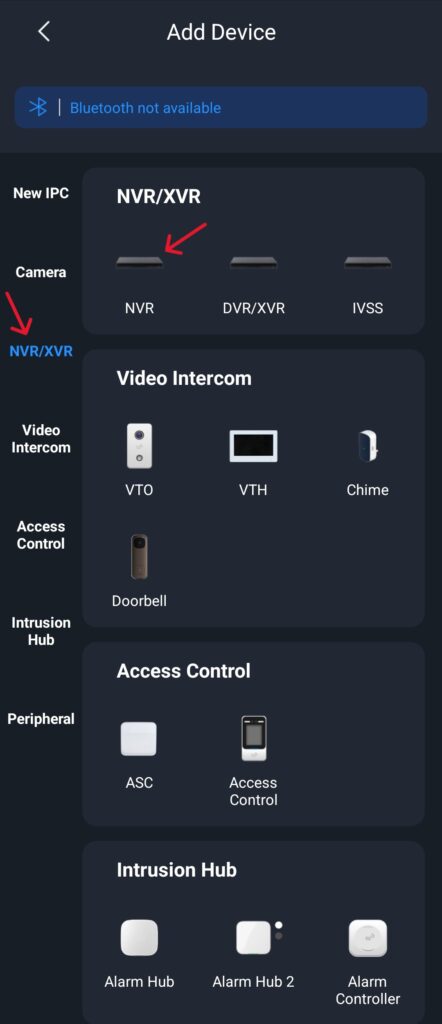
Step 7: This new page will populate; you will press the NVR option.
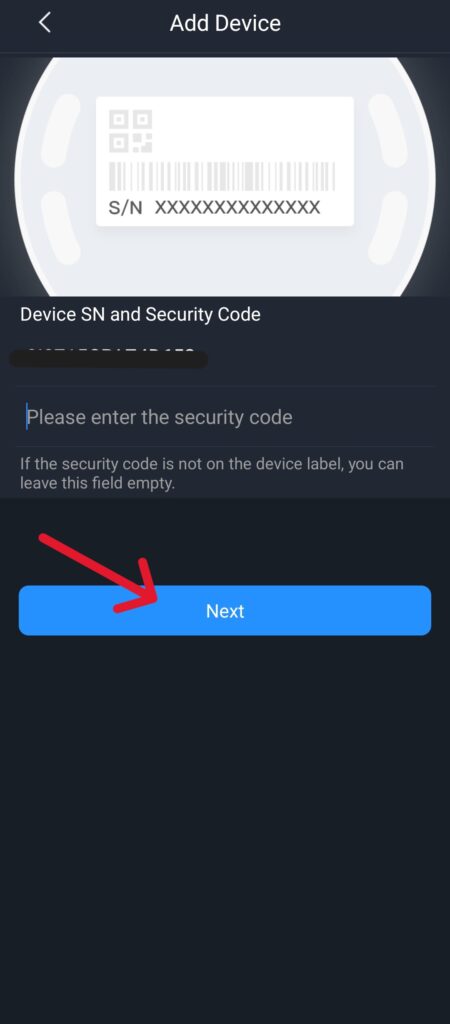
Step 8: A page will then pop up asking for the SN (serial number) of the system. You can reach out to us at Sentry if you do not have this information. Once received, enter the SN and press next. You do not need to enter a security code.
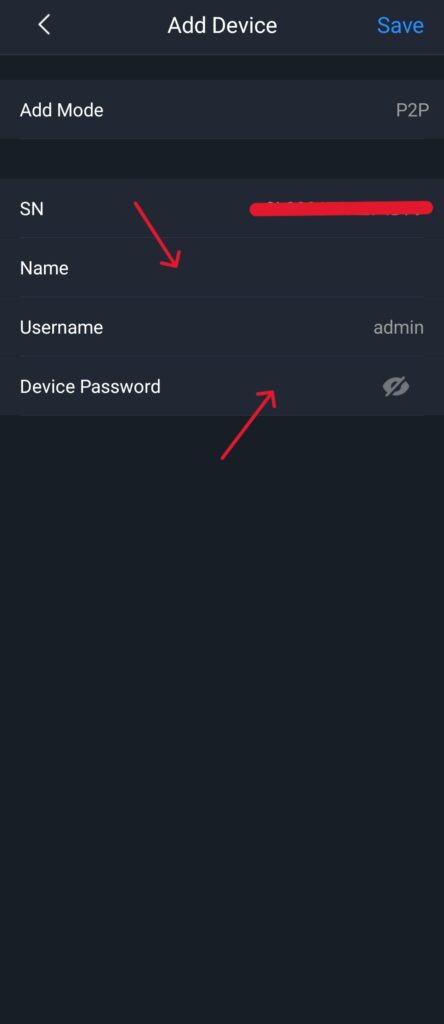
Step 9: A new page asking you to name the device and enter a username/password will populate. You will want to name your device something that is easily identified. The username and password will be provided by Sentry.
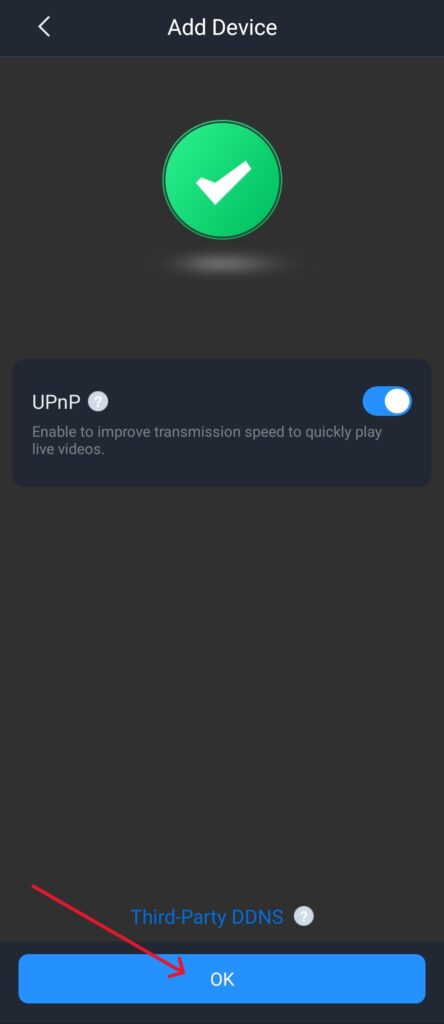
Step 10: Once you fill in this information, this page will pop up. Just click ok.
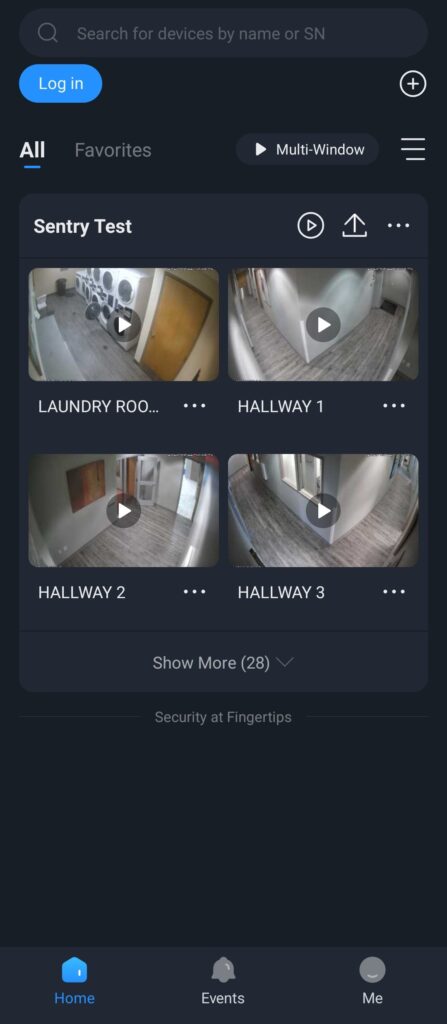
Step 11: Now you will see that your cameras show up on your dashboard. This is how you will view your cameras.
Important notes
We do not recommend reviewing playback footage in this app. The desktop version, Smart PSS, is better suited for this. It can be done but it is inefficient compared to Smart PSS. We recommend using this app just to view cameras live.
Have more questions? We have answers. Call us today.
817-632-4246
Looking for Assistance?
Have questions or want a free security assessment? Our team is ready to help.
New Security Systems
Schedule a consultation or system design
Existing Systems
Service, maintenance, and upgrades