What is a Mobile Credential?
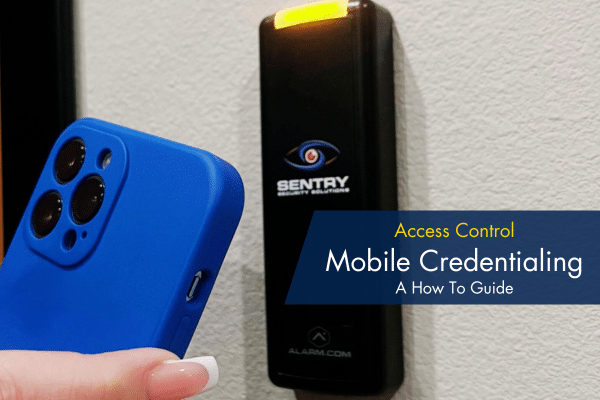
A mobile credential is a digital access key stored on a smartphone or other mobile device that allows an individual to gain entry to a secured area or system. Instead of using traditional access methods like keycards, fobs, or physical keys, mobile credentials leverage technologies such as Bluetooth, NFC (Near Field Communication), or QR codes for authentication. Smartphone access control credentials (mobile credentials) can take the form of an app users download, a QR code users can scan or a custom link sent via SMS or email.
Bluetooth Low Energy (BLE)
Bluetooth technology establishes a personal-area network (PAN) between two devices that allows them to share information such as access credentials. Bluetooth-enabled mobile access allows security systems to pair with smartphones. When a smartphone comes into contact with a door reader, electronic signals containing the credential information are transmitted between the devices. The reader passes the information to the door controller, which in turn verifies the credential information. If the information is correct, then access is granted.
Near Field Communication (NFC)
Near field communication (NFC) is another technology used in mobile access control. You might be familiar with NFC as it’s used in contactless debit and credit cards and at ATMs.
NFC is the premier choice for a contactless exchange or transmission of data (in this case, credentials) between two devices. Like Bluetooth, NFC works on the principle of sending information through RFID (radio frequency) waves. Unlike Bluetooth, however, NFC is limited to small ranges or shorter distances of communication.
Alarm.com uses both BLE and NFC for mobile credentials:
How To Accept A Mobile Credential
To accept a mobile credential invitation and begin using the mobile credential:
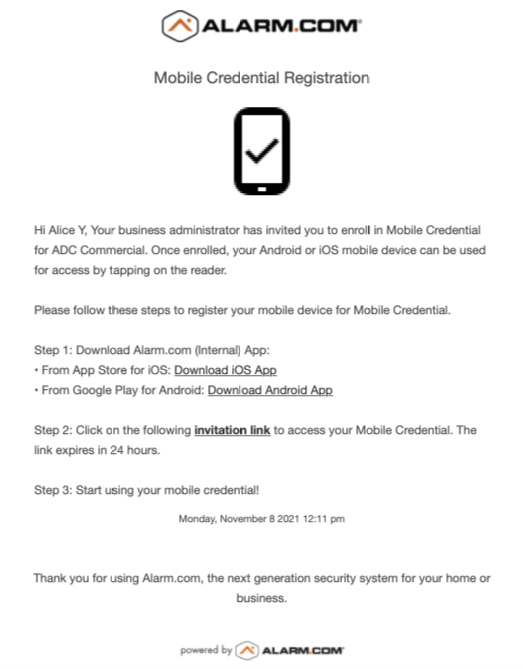
Android NFC:
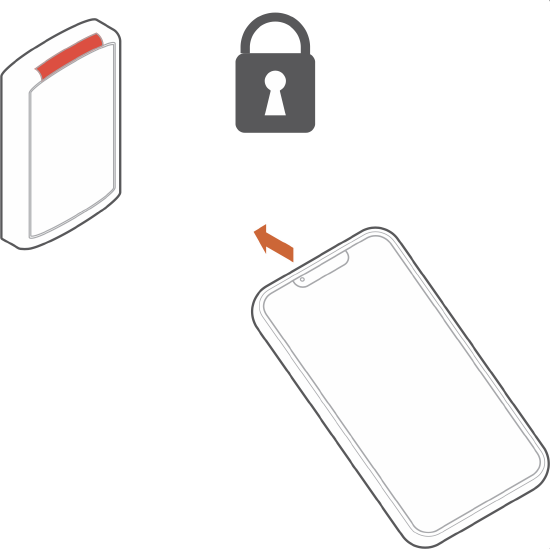
iOS Bluetooth:
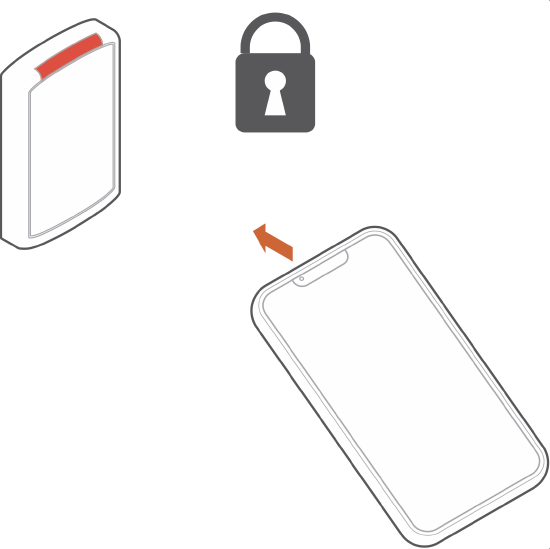
How To Assign a mobile credential
Mobile credentials can be assigned using the customer app or customer website.
To assign a mobile credential to a user using the customer app and website:
Note: When adding new user credentials, allow 2 minutes after the last user credential change is made for changes to go into effect. When revoking a user’s access, the change goes into effect immediately after saving.
How To Delete a mobile credential
Mobile credentials can be deleted using the customer app or customer website.
To delete a mobile credential to a user using the customer app:
How To Use Mobile Credentialing
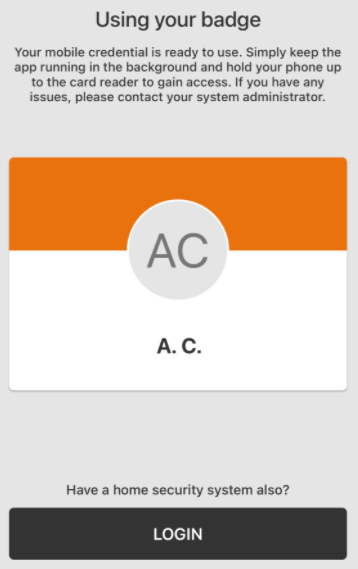
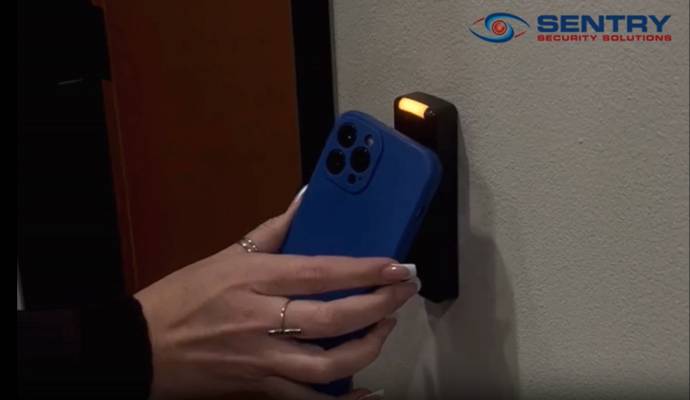
After accepting the mobile credential invitation, your Android or iOS device can be used by tapping it on the reader just like a physical badge. Make sure NFC (for Android devices) or Bluetooth (for iOS devices) is enabled on your device and the alarm.com app is running in the background.
Have more questions about Mobile Credentialing? We have answers. Call us today.
817-632-4246
Looking for Assistance?
Have questions or want a free security assessment? Our team is ready to help.
New Security Systems
Schedule a consultation or system design
Existing Systems
Service, maintenance, and upgrades